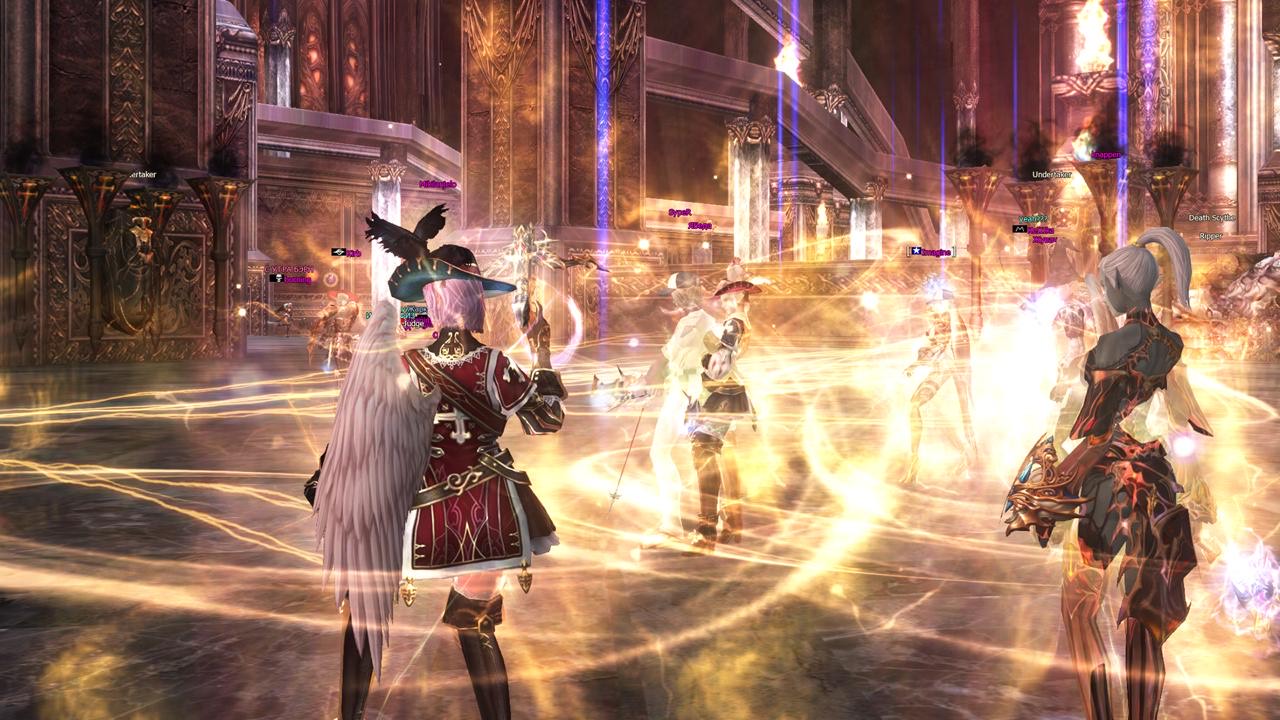
Overview
The Lineage 2 interface is built from the HP/MP/CP status bars, chat, inventory, map, skill bars and party window. Every window is draggable. Core keys: F1–F12 for skills, Alt+C for inventory, Alt+V for actions, Alt+T for party.
Hotkeys
These are the keybinds you'll use constantly. Learn the top row first, then add the rest as you go.
| Key | Action |
|---|---|
| F1–F12 | Main skill bar |
| Ctrl+F1–F12 | Second skill bar |
| Alt+C | Inventory |
| Alt+V | Actions window |
| Alt+T | Party window |
| Alt+B | NPC buffer (where supported) |
| Alt+X | Log out / exit |
| F9 | Macro |
| F10 | Character info |
| F11 | World map |
| Enter | Chat |
| Tab | Target the nearest enemy |
| Ctrl+Click | Force attack (PvP) |
UI Setup
Drag windows with the left mouse button. Put the HP bar at the top center of the screen, the skill bar along the bottom, and chat in the lower-left corner. Increase the chat font from the right-click chat menu. Build macros for repeated actions — for example, a "Buff" macro on a Prophet that casts every buff in sequence from a single keypress.
Panels & Windows
The Lineage 2 UI is split into functional blocks, each of which can be dragged, minimized or hidden. Here are the key windows:
- Status bars (HP/MP/CP) — your health, mana and combat points. Your current target shows a separate HP bar at the top of the screen.
- Skill bars — two rows of slots mapped to F1–F12 and Ctrl+F1–F12. Drag skills, items and macros straight into the slots.
- Party window (Alt+T) — party roster, allies' HP/MP and buff icons. Essential for the leader and the healer.
- Radar & minimap — local navigation, NPC markers and teleport points. The full world map opens with F11.
- System menu — inventory, quest, friends and settings icons along the bottom of the screen.
New players should first read the beginner's guide to learn the basic mechanics, then tune the interface to taste.
Macros
Macros are the main tool for comfortable play in Lineage 2 — they fold several commands into one keypress. Open the Actions window (Alt+V), switch to the Macro tab and create a new sequence. Useful commands include /useskill Heal, /target name, /attack, /sit and /delay 2 to pause between skills. Buff chains for support classes, attack rotations for DDs, and quick party invite/sit macros all sit nicely on your free skill-bar slots.
Chat & Channels
Several channels are active by default: All (seen by players nearby), Trade (+ before the message), Party (#), Clan (@) and Whisper (" followed by a name). Create separate chat tabs for combat messages and conversation so you don't lose important information mid-fight. Right-click the chat field to adjust font size and background transparency.
Performance & FPS
Stable FPS is critical in mass PvP and castle sieges. Lower the view distance, disable shadows and water quality, and turn off other players' skill effects — this dramatically eases the load on your GPU in a crowd. Enable V-Sync only if you see screen tearing. Before PvE farming or a quest run, make sure background apps are closed. A clean layout speeds up your reactions: put heals and escape skills on the most accessible keys, and flags and buffs on the second bar.